


What External Devices Can Be Connected to Projectors via HDMI?
By XGIMI Tech - 2025-12
Do you long to transform your living room into a private cinema on cozy weekend evenings? Or during intense gaming moments, do you wish to unleash your passion on a massive screen, experiencing the thrill of being right in the action? The HDMI port on your smart home projector serves as the magic gateway to unlock these extraordinary experiences.
HDMI Port: Smart Projectors' Universal Expansion Hub
The HDMI (High-Definition Multimedia Interface) port and cable provide seamless connectivity with various external devices, significantly expanding the video projector's functional capabilities. This allows your movie-watching, gaming, and work scenarios to shine with unprecedented brilliance.
Below, we detail common external devices that can connect to smart projectors via HDMI, along with key connection points. Here are four main types of connectable devices and their operation guide.

1. Laptops and Desktop Computers
Connecting laptops or desktop computers to modern video projectors via HDMI is a common scenario. For instance, in office settings, you can connect your laptop to project PowerPoint presentations onto a large meeting room screen for clearer, more intuitive presentations. For home entertainment, connect your desktop computer to enjoy immersive AAA games with stunning visuals.

Connection Steps:
(1) Connect the computer to the projector using an HDMI cable
Use a high-quality HDMI cable to ensure stable transmission of high-definition video, thereby preventing issues such as screen freezing or distortion.
Plug one end of the HDMI cable into the computer's HDMI port—typically located on the side of a laptop or at the rear of a desktop near the graphics card (or on the motherboard's rear panel for integrated graphics).
Plug the other end into the HDMI port on the projector, usually located on the back with other interfaces and marked with an HDMI symbol.
(2) Use the remote control to switch the signal source to HDMI
After connecting, the projector will typically automatically detect the signal source and switch to HDMI input mode. If it doesn't switch automatically, use the remote control to manually select the HDMI signal source in the settings.
(3) Select “Duplicate” or ‘Extend’ Screen on Your Computer
Press “Windows + P” (Command + F1 on Mac) to open display settings on your computer. Choose “Duplicate” mode to mirror your computer screen on the projector.
Alternatively, choose “Extend” mode to use the projector as a second computer screen for multitasking—e.g., viewing documents on your computer while presenting a slideshow on the projector.
We also recommend adjusting your computer's “Display Settings” to match the projector's optimal resolution for the clearest display.
Note: Key names and shortcuts may vary depending on the operating system or product.
Tips:
● If the image appears blurry, adjust the resolution in your computer's display settings, such as changing to 1920×1080@60Hz.
● If you want to connect an external speaker, you can manually switch the output device in your computer's sound settings.
2. Gaming Consoles (PS5/Xbox/Switch, etc.)
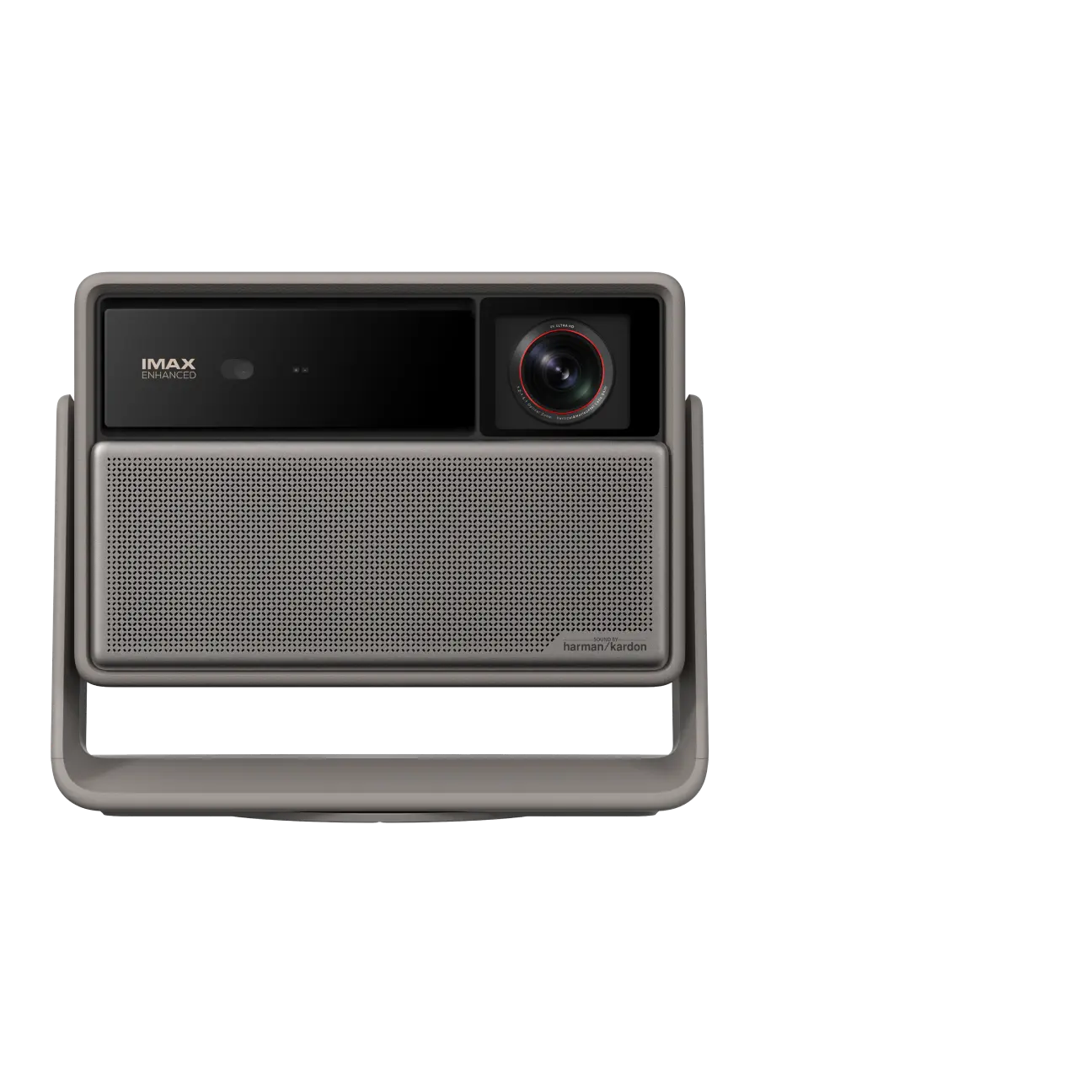
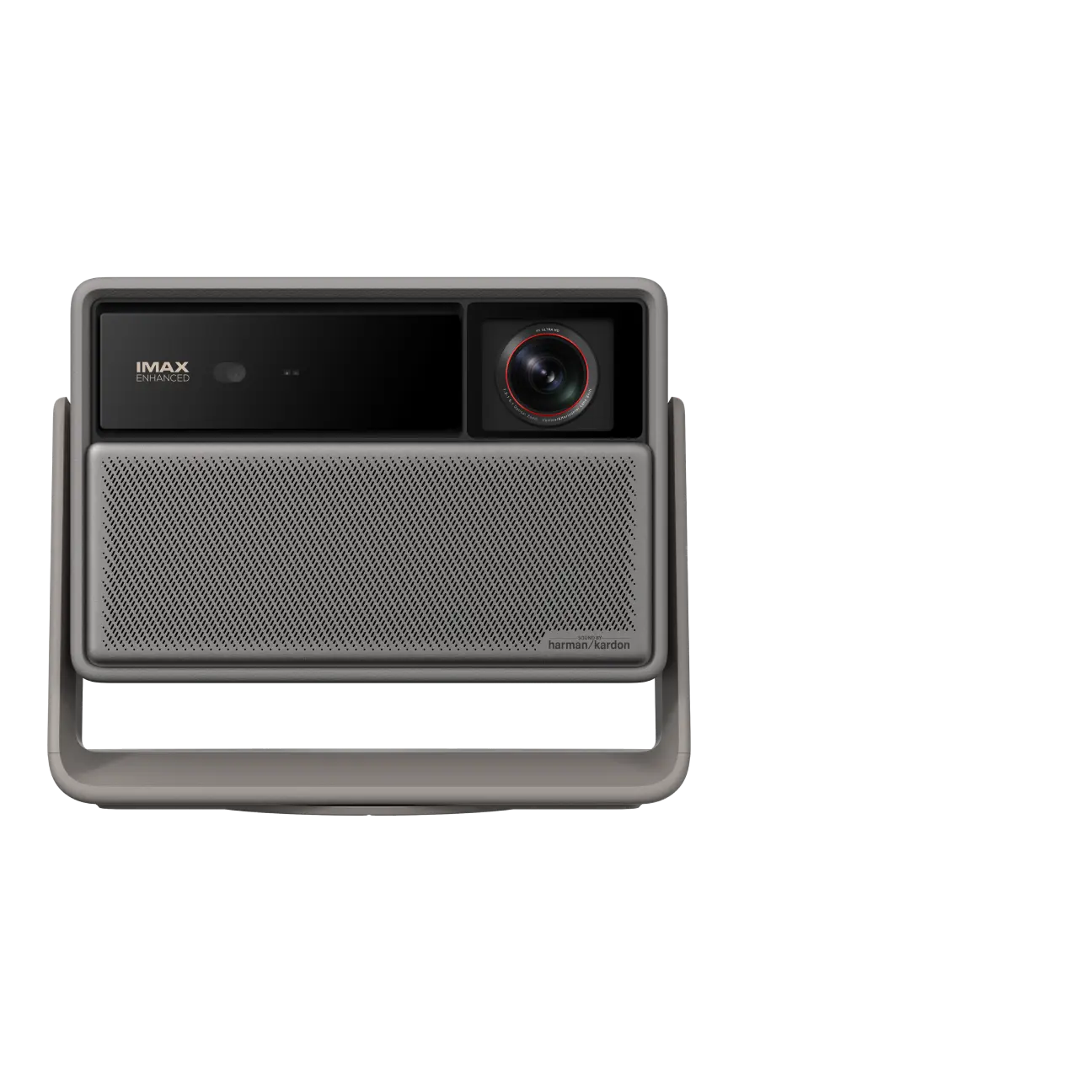
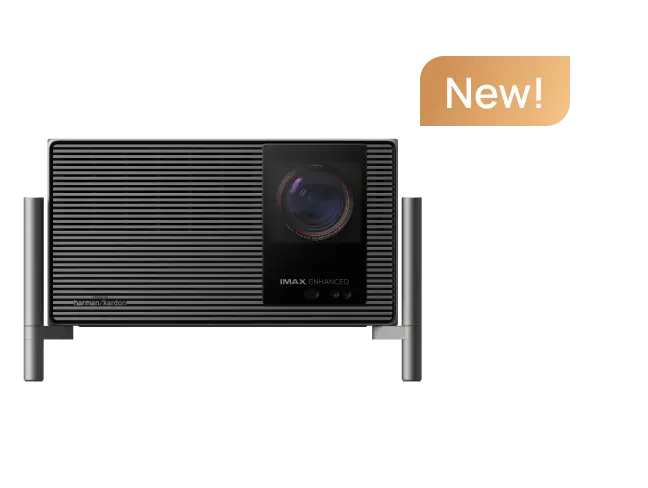
For gaming enthusiasts, connecting consoles like Xbox or PlayStation to a low-latency 4K projector for gaming, like the XGIMI HORIZON 20, via HDMI delivers an immersive experience. For instance, when playing racing games, the large screen displays more realistic tracks and vehicles, offering a highly responsive feel.

Connection Steps:
(1) Prepare an HDMI Cable and Connect Two Devices
Connect one end to the HDMI output port of your gaming console and the other end to the HDMI input port of your gaming projector.
(2) Turn on Both the Gaming Console and the Projector
The projector will automatically search for a signal source. If it doesn't switch to the gaming console signal automatically, use the projector remote to select the corresponding HDMI channel from the source options.
(3) Manually Adjust It to the Proper Casting
During initial connection, the console may automatically detect and optimise display settings. If the image appears abnormal, manually adjust resolution, refresh rate, and other parameters in the console's display settings to match the projector.
Tips:
● About Input lag: For some XGIMI projectors, you can enable the “Game Mode” and turn off the Auto Keystone mode to reduce latency.
● About HDR Compatibility: When using a projector with a gaming console through an HDMI cable, HDR can enhance cinematic, slower-paced single-player games, but the actual benefit depends on real-world performance. Some XGIMI models support HDR10, but you need to disable Dolby Vision in the console's settings before using it.
● About Audio Return Channel: For an immersive gaming experience, you can connect a soundbar via HDMI ARC for 5.1 surround sound.
3. External Streaming Devices (Apple TV/TV Sticks, etc.)
Connecting devices like Amazon Fire TV sticks, Roku, Apple TV, or a set-top box to the projector via HDMI unlocks extensive media libraries. The external TV sticks or boxes enrich your home entertainment options, which allow for effortless streaming of TV shows, live streams, sports games, and variety programs.
Connection Steps:
(1) Connect the TV box's HDMI port to the projector's HDMI port using an HDMI cable.
(2) Power on both the TV box and projector. The projector will automatically detect the TV box signal. If not detected, manually select HDMI as the projector's input source.
(3) During initial setup, follow the TV box's wizard to connect to the network and log in to your account. Afterwards, use the TV box remote to control playback and enjoy various media content on the projector's large screen.
4. Blu-ray Player and Hard Drive Player
For cinema-quality Blu-ray playback at home, connecting your Blu-ray player to the 4K home theater projector via HDMI is an excellent choice. Blu-ray players deliver high-definition video and audio signals from Blu-ray discs.
Connection Steps:
(1) Connect the Blu-ray player's HDMI output port and the projector via a cable.
(2) Power on both the Blu-ray player and projector. The projector will automatically detect the Blu-ray player signal. If it doesn't switch automatically, manually select the HDMI input source.
(3) Insert a Blu-ray disc into the player. Use the Blu-ray player's remote control to operate it and enjoy Blu-ray HD movies on the projector's large screen.
HDMI Projector Recommendations
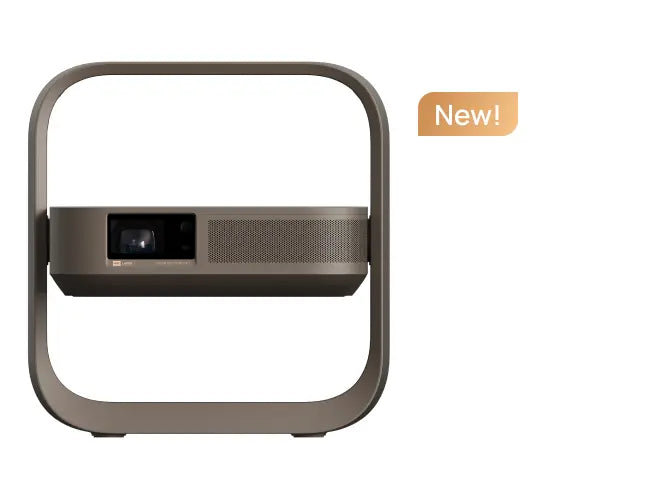
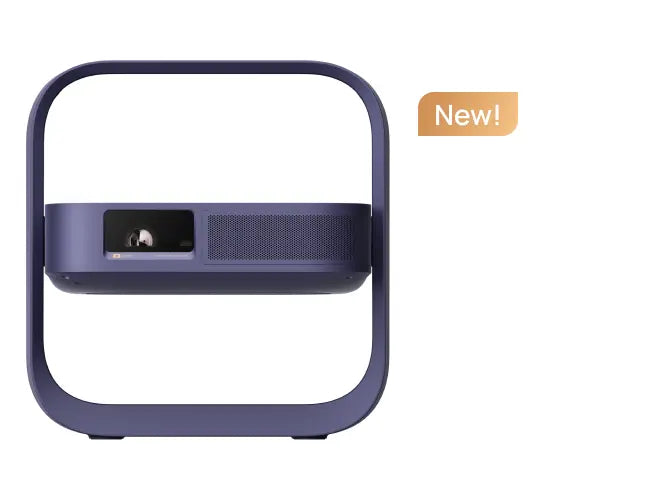
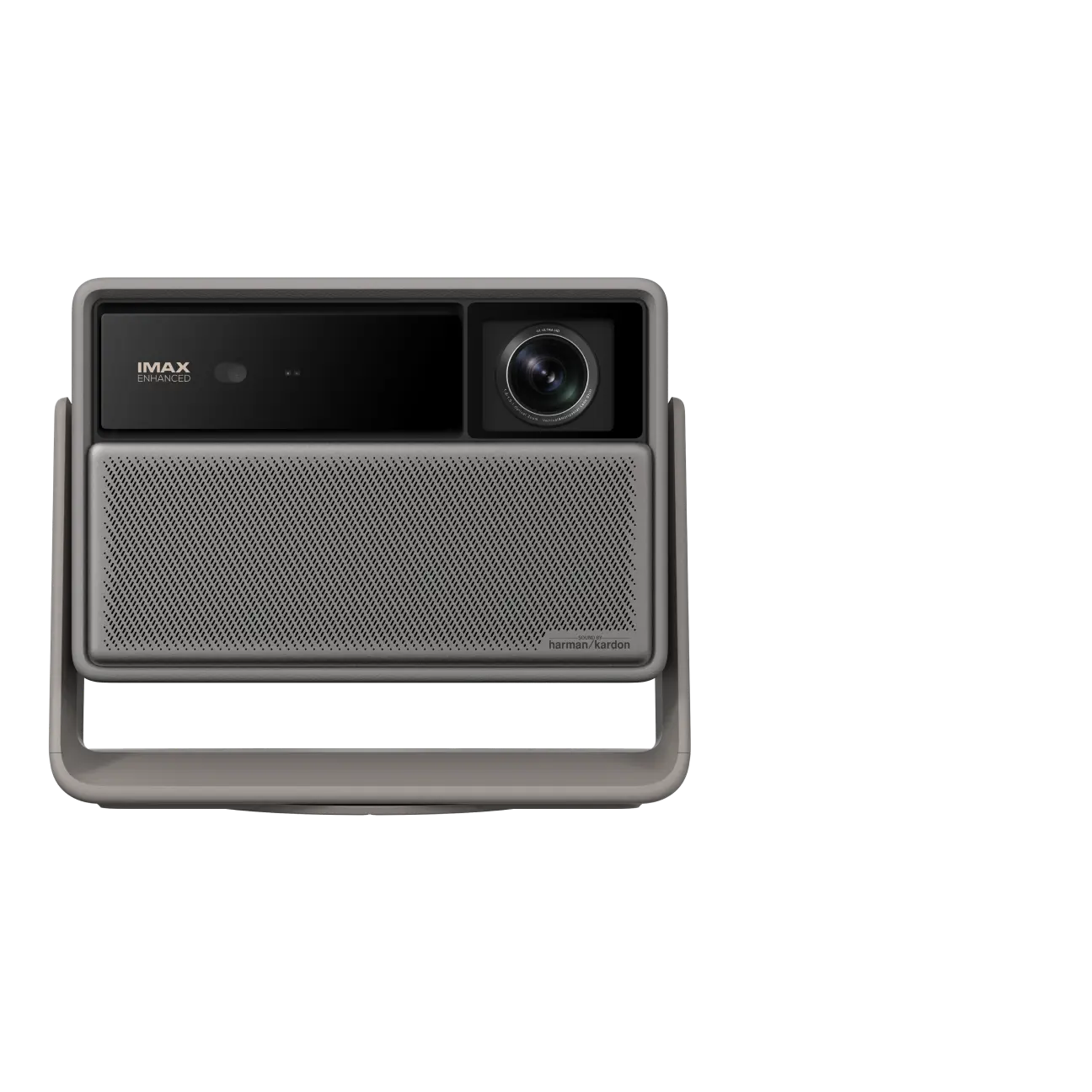
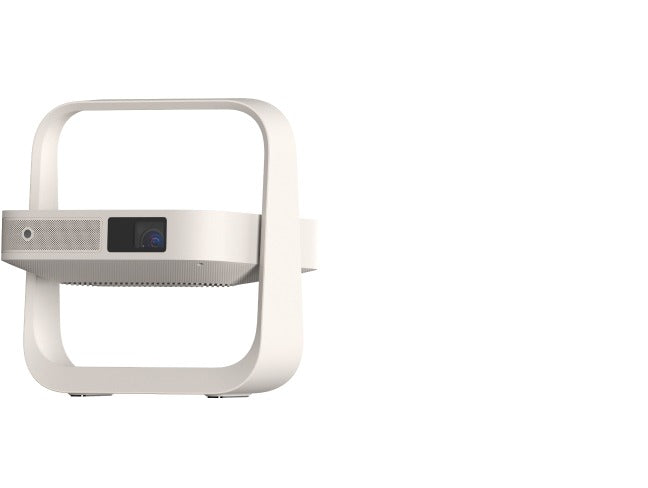
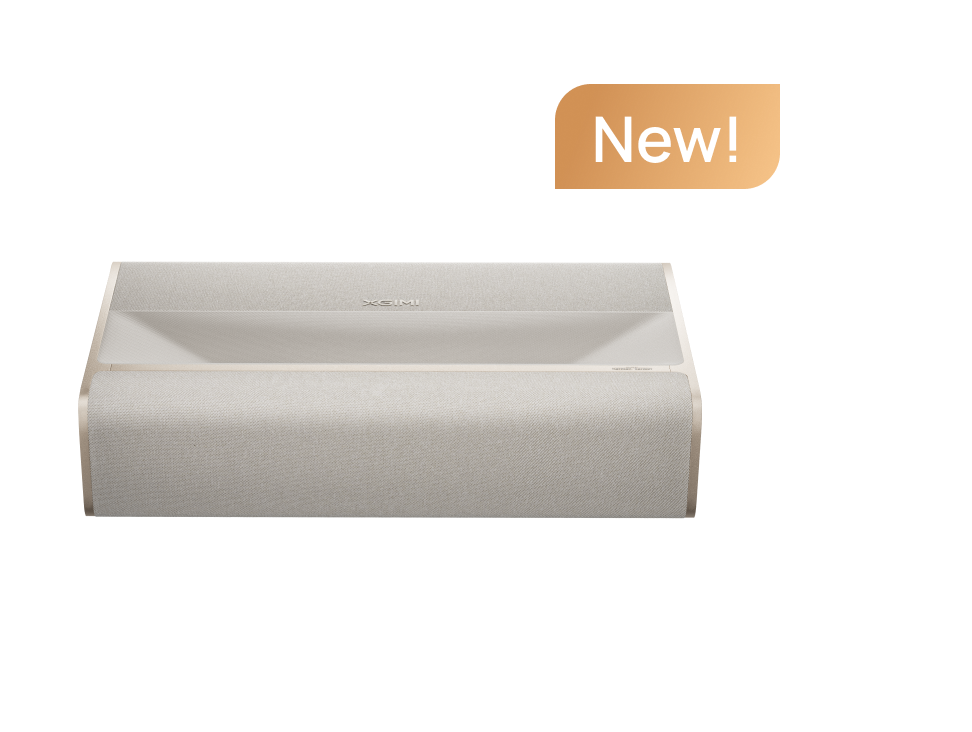
XGIMI smart projectors are all designed to have single or dual HDMI ports for connection. You may connect the HDMI projectors to various external devices, creating diverse entertainment and productivity scenarios.
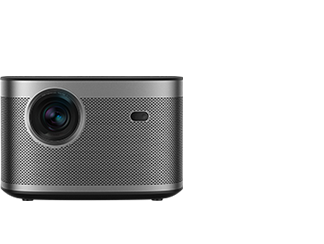
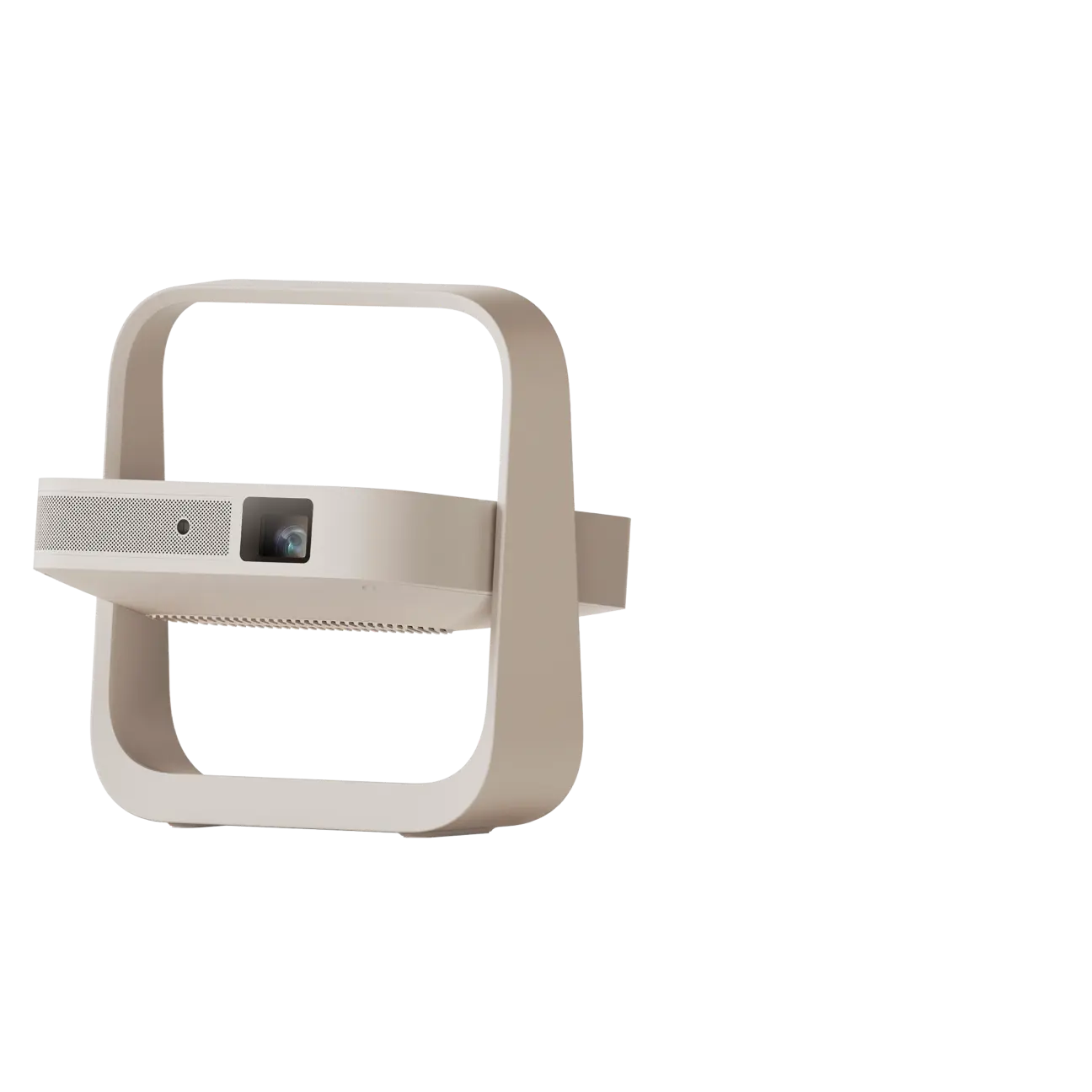
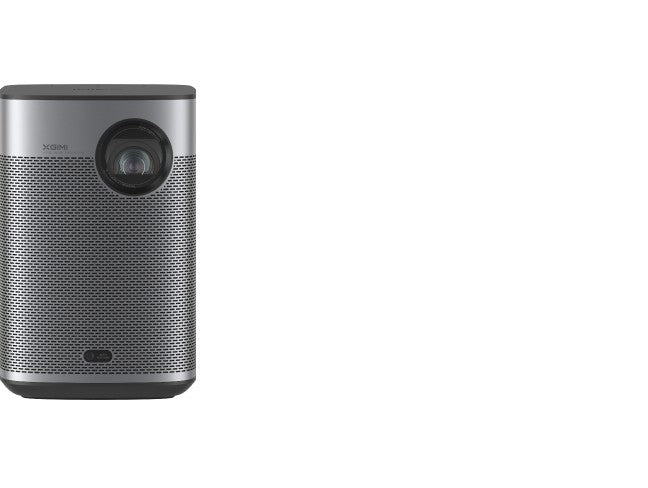
● For regular TV viewing, opt for models with higher brightness and clarity like the XGIMI HORIZON series 4K movie projector. Its high lumen output and 4K resolution ensure crisp, bright images in any ambient lighting.
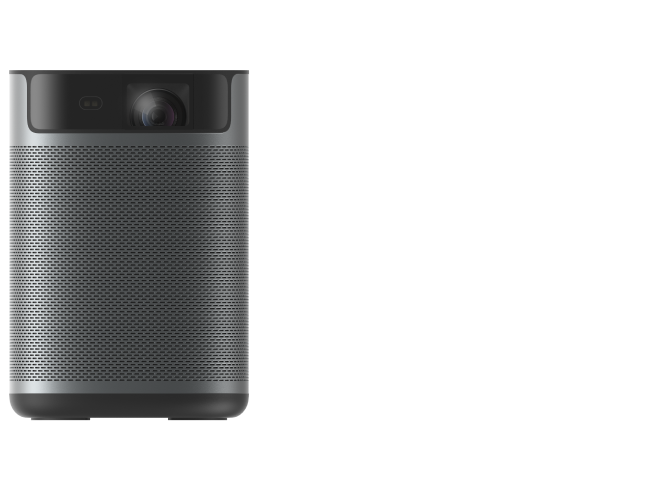
● For gaming in bedrooms or darkened rooms, the XGIMI MoGo and Elfin series portable FHD projectors are excellent choices. The outstanding color performance and 1080p resolution deliver clear and colorful images for movies and games. Compared to a computer screen, the four times larger display size offers significantly greater immersion.
Product Recommendations
Just Play,
Your Way

Mini Size, Maximum Entertainment

Mini Remote Control





Enjoy £10 off Your Next Purchase
Be the first to know about any news and sales!
*By subscribing, you agree to receive XGIMI's marketing emails and XGIMI's Privacy Policy.