
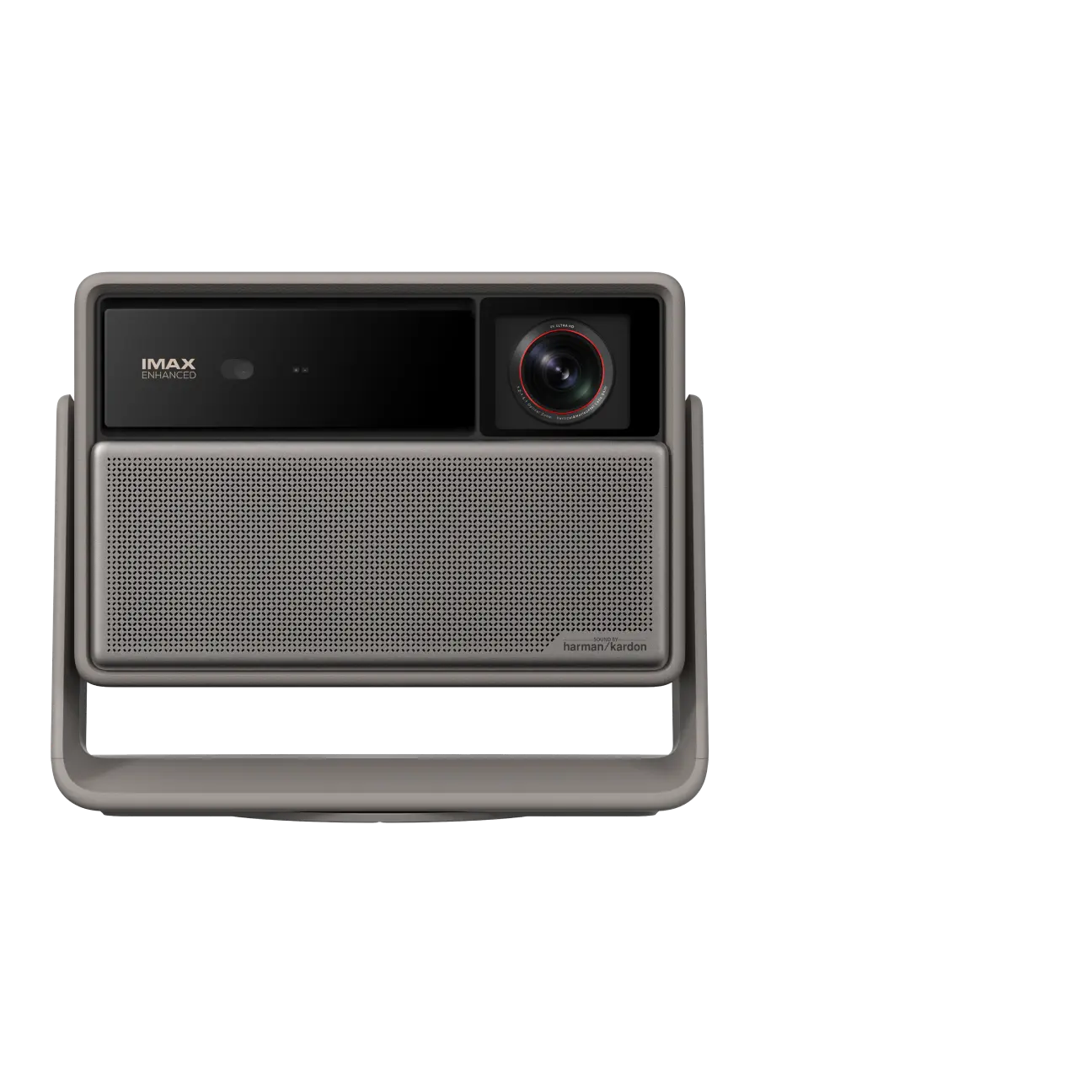
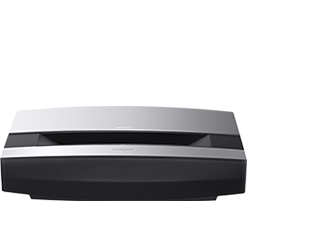



Projectors provide a much bigger screen than TVs, offering a more immersive viewing experience with bigger pictures. By connecting your smart TV to a smart projector, like XGIMI projectors, you can do more than view external content. You can watch regular TV channels on your projector screen for an immersive viewing experience.
In this article, we discuss how to connect TV to projector.
Assessing TV and Projector Compatibility
1. Understanding the Available Ports and Connectivity Options on Both the TV and Projector
Connectivity options are the different ways you can connect one device to another. Typically, there are wired and wireless connectivity options. To establish a wired connection, you need a cable to plug into the ports on both devices. The commonly available ports on both TV and projector include:
● High-Definition Multimedia Interface (HDMI)
HDMI is a connector cable for transmitting high-definition audio and video streams between devices. HDMI is commonly used for HDTVs, projectors, or Blu-ray players. Both devices must be HDMI-compliant to transmit data through the HDMI cable. That is, they must have HDMI ports.
● Video Graphics Array (VGA)
VGA is a standard connector used to connect display devices. The VGA cable typically has 15 pins; similarly, both devices must be VGA-compatible to connect using a VGA cable. While you may still find display devices with VGA ports, VGA is becoming obsolete as it's been replaced chiefly by HDMI.
● RCA
The RCA is a connector commonly used to transmit audio and video signals. RCA was derived from its mother company, Radio Corporation of America. There are two types of RCA cables: composite RCA and component RCA.
The component RCA cables can display higher resolution than the composite cables. Hence, they are typically used to connect TV to projector.
2. Checking the Resolution and Aspect Ratio Capabilities of the TV and Projector
Resolution refers to the number of pixels a screen can display vertically and horizontally. For example, 1280 × 1080. Usually, the higher the resolution, the sharper the display.
On the other hand, the aspect ratio of an image is the ratio of its width to its height. The aspect ratio is expressed with two numbers separated by a colon (W: H), e.g., 4:3.
The TV's resolution usually determines the aspect ratio, although different aspect ratios can have the exact resolution. For example, 1280 × 720(FHD) and 1920 × 1080 have the same aspect ratio of 16:9.
It's essential to match the resolution and aspect ratio of the TV to that of the projector for the best display quality if it is matched. So, you must ensure that the projector you buy has your TV's exact resolution and aspect ratio.
3. Verifying if any Additional Adapters or Cables Are Required for the Connection
After getting the aspect ratio and resolution right, you must find out if you need additional adapters or cables for the connection. Usually, some projectors have a built-in speaker, so you may not need an external one. But if you need louder audio, you will need the home theater cable.
Besides this, you may also need an adapter if your TV and projector have different connection ports. For instance, if your TV has a VGA port and your projector has an HDMI port, you will need a VGA to HDMI adapter to connect both devices. So, in situations where your TV and projector don't have identical ports, you can still link them using an adapter.
How Do I Connect My Smart TV to My Projector?
You can connect your smart TV to your projector using wired or wireless. While a wired connection is more secure, it may not be inconvenient when the two devices are in different rooms. Hence, why there's a wireless option. In this section, we will discuss both options:
Wired Connection Options
Wired connection options require physically connecting the input and output source using cables. Here is how to connect TV to projector using wires:
● HDMI Connection
Below is how to connect TV to projector HDMI:
- Connect the projector and TV: Turn off the TV and projector. Use your HDMI cable to connect both devices. Plug one end of the HDMI cable into the HDMI video output port of the TV. Then plug the other end of the cable into the HDMI video input port of the projector.
- Enable the TV to output to the projector: Turn your TV and projector on. On your TV, go to the settings using your remote. Select the "Auxiliary Video Out" or "Enable Video Out" option. Change the setting to "on" to enable TV output.
- Set the projector input option: Go to settings on your projector. Under settings, change the input source to HDMI. The content on your television should immediately appear on the projector screen.
Some older TVs may not have an HDMI port, but VGA. In such cases, you will need a VGA to HDMI adapter. Plug the VGA cable into the output port of the TV and plug the HDMI cable into the input port of the projector to connect them.
● Component Video Connection
You can also connect both devices using a component cable. The RCA component cable usually has five RCA jacks (red, blue, green, red, and white). The first three are for video, while the last two (red and white) are always for audio. The audio cables are slightly separated from the other wires or may even be on a separate RCA cable.
Here's how to do it:
- Turn off and unplug the projector and the TV.
- On your projector, plug one end of the red component cable into the "Cr" (red-colored) port on the projector under the area labeled "component " or "component video."
- Plug one end of the green component cable into the "Y" (green-colored) port on the projector. Plug one end of the blue pin into the "Cb" (blue-colored) port.
- For the audio, plug one end of the red audio cable into the "Right" (red-colored) port under the area labeled "audio." Plug one end of the white or black audio cable into the "Left" or (white or black colored) port, still under the audio port label.
- Go to the TV and connect each cable to the corresponding ports. For example, fit the white audio cable into the "Left" port, like on the projector.
- Turn both devices on. On your projector, navigate through the component listing to "Component" and press "OK" or "Enter" to select TV. The video and audio from the TV will transmit to the projector.
● VGA Connection
The last wired connection method is the VGA connection. As said earlier, you will need a VGA to HDMI adapter if only one device (the TV) has a VGA port. But if both devices have a VGA port, here's how to connect them:
- Connect the VGA cable: Turn your TV and projector off. Connect one end of the VGA cable to the output video port of the TV. Then, connect the other end to the input video port of the projector.
- Enable the TV to output to the projector: Turn both devices on. On your TV, go to the settings using your remote. Select the setting option "Auxiliary Video Out" or "Enable Video Out." If it is off, change the setting to "on" to enable TV output.
- Set the projector input option: Go to settings on your projector. Under settings, change the input source to VGA. The content on your television should immediately appear on the projector screen.
Wireless Connection Options
There are two wireless connection methods:
● Screen Mirroring
Screen mirroring enables you to duplicate the content on a smaller screen unto a bigger screen wirelessly. In this case, screen mirroring can be used to mirror the screen of your TV to your projector. Here's how to do so:
- Add the projector to the TV device list: Turn on your TV and go to Settings. Select "General", then select "External device manager". Then click "Device Connection Manager" among the options, choose "Device list", and select your projector's name in the drop-down menu. Click on "Allow" once prompted. Now, your TV and projector have been paired.
- Mirror TV to the projector: Go to "Menu" on your projector using the remote control. Select "Settings" then "Connected Devices". Next, select "TV Access" and choose your TV name from the list. Your TV screen should now be mirrored on your projector.
● Wireless HDMI Transmitter
Wireless HDMI is an alternative to wired cables. It lets you connect two devices without cables, transmitting video and audio using a transmitter and receiver.
As a result, your TV and projector can be paired, even in different rooms. Content can be wirelessly transmitted up to 150 feet away. If you don't like the mess cables create, here's how to connect TV to projector using a wireless HDMI:
- Set up the wireless HDMI: connect the TV to the HDMI transmitter using a short HDMI cable. Plug the transmitter to a power outlet. Wait for the transmitter to show a green light, indicating an established connection.
- Set up the wireless HDMI receiver: use another short HDMI cable to connect the projector to the receiver. Plug the receiver into a power outlet. Wait for it to show a green light.
- Turn on the TV and projector. Go to settings on your projector, then go to Input Source. Select the input source that matches the HDMI port you used for the receiver. Your TV screen should show on your projector.
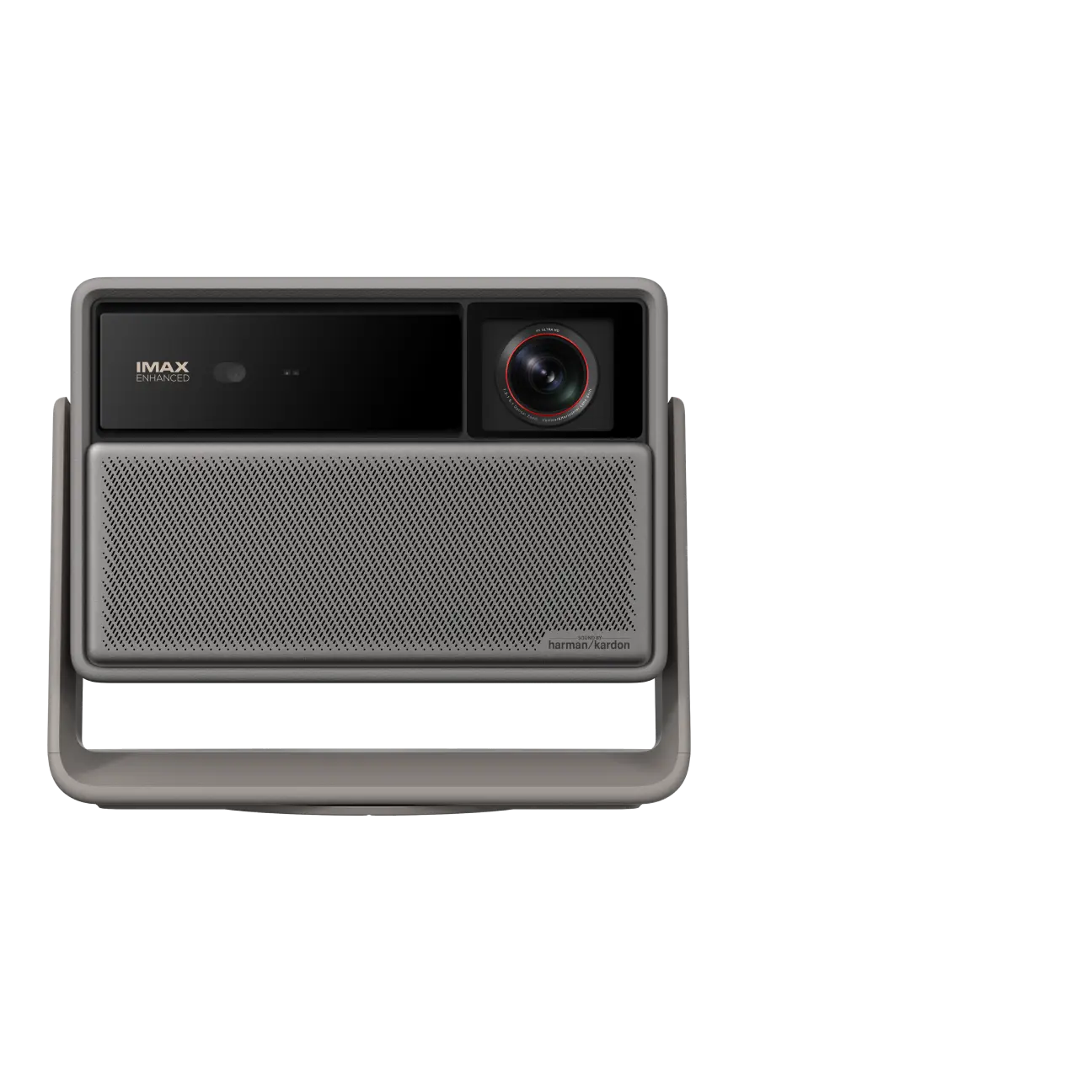
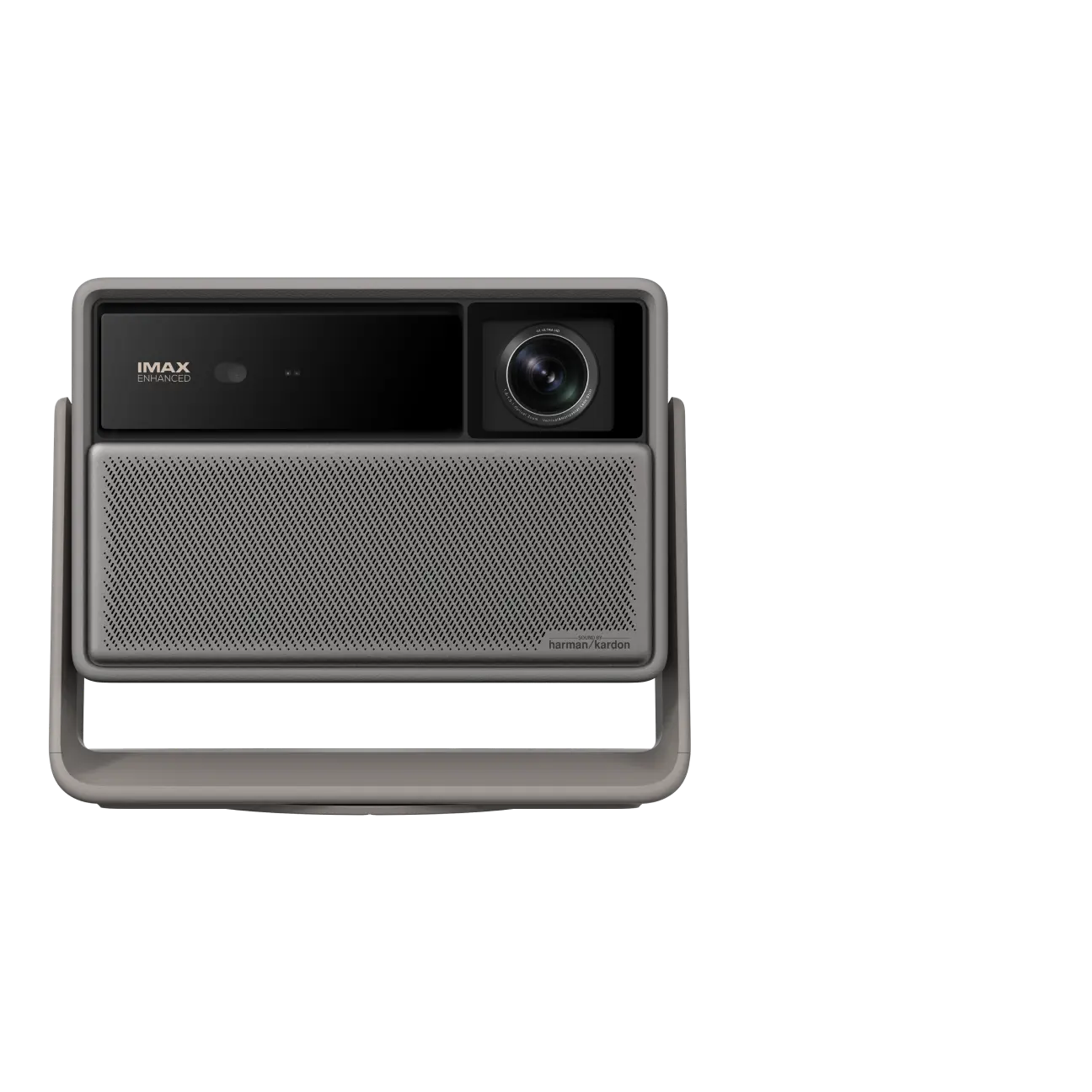
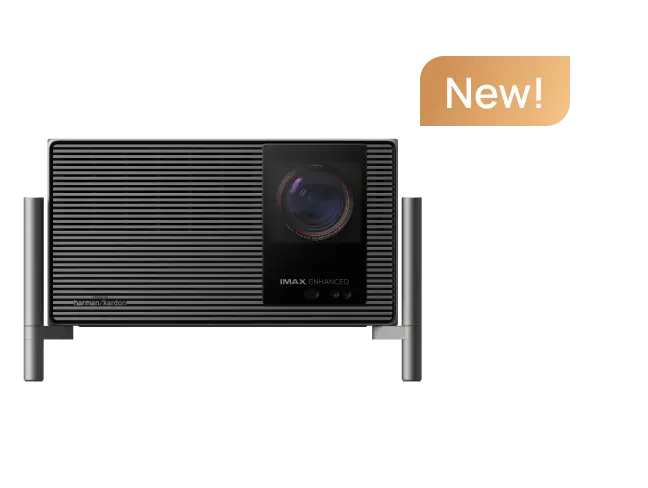
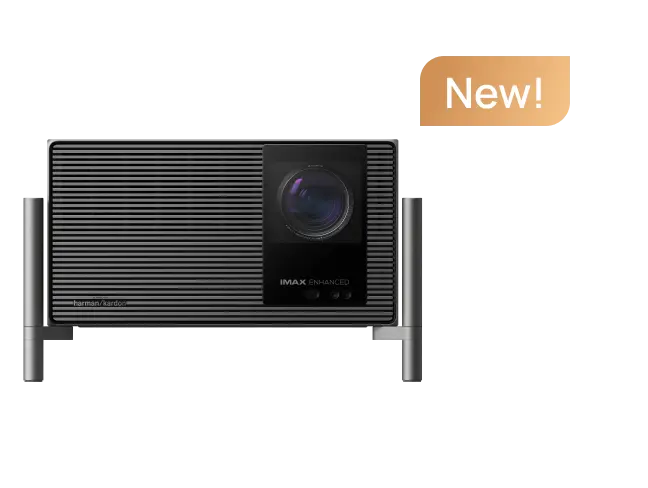
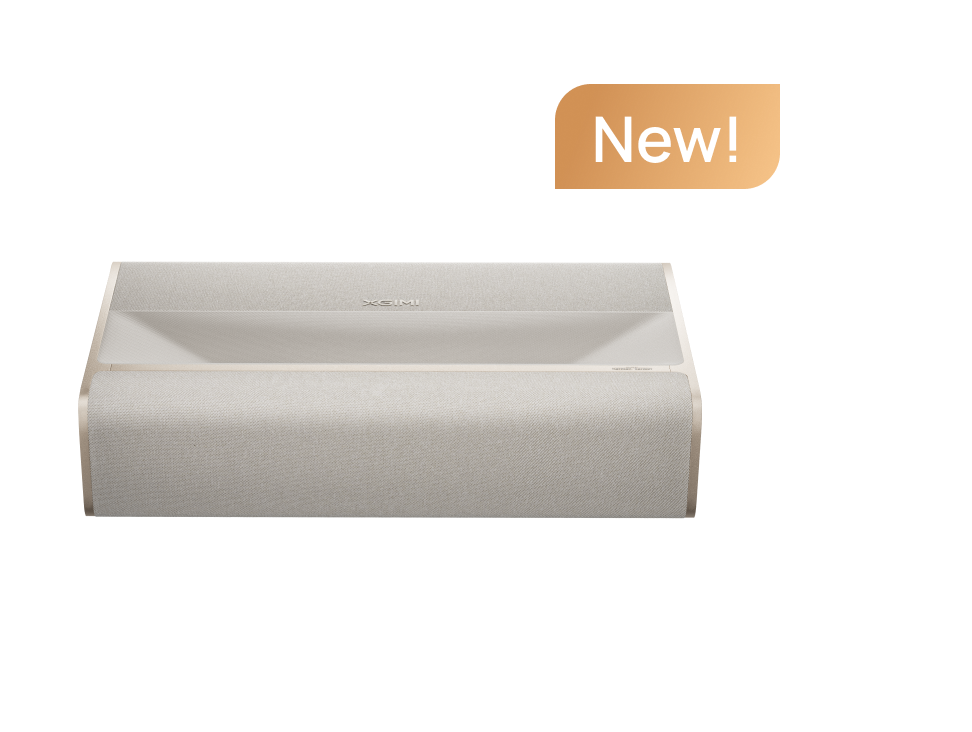
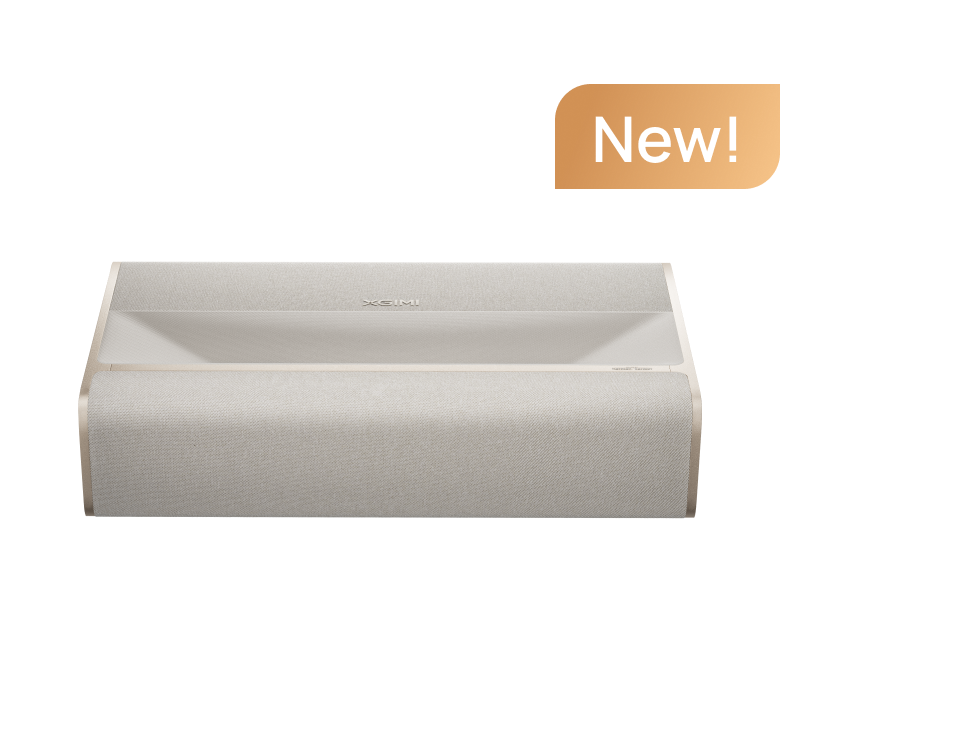
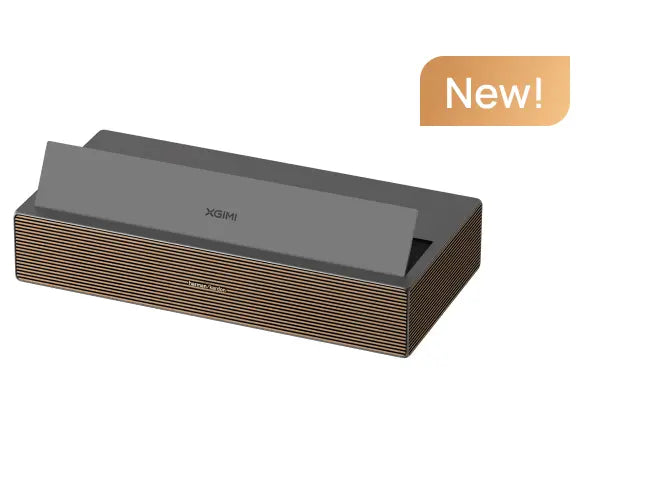
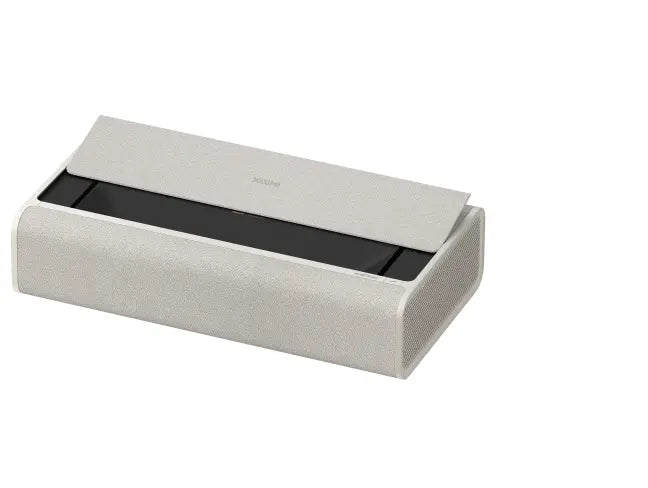
XGIMI Smart Home Projectors Recommendations
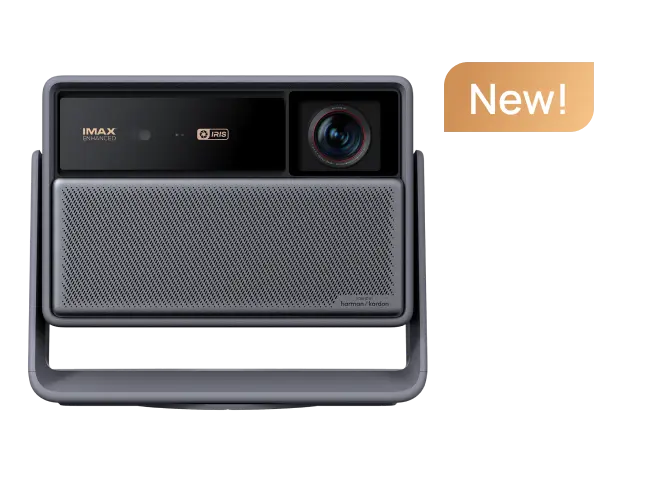
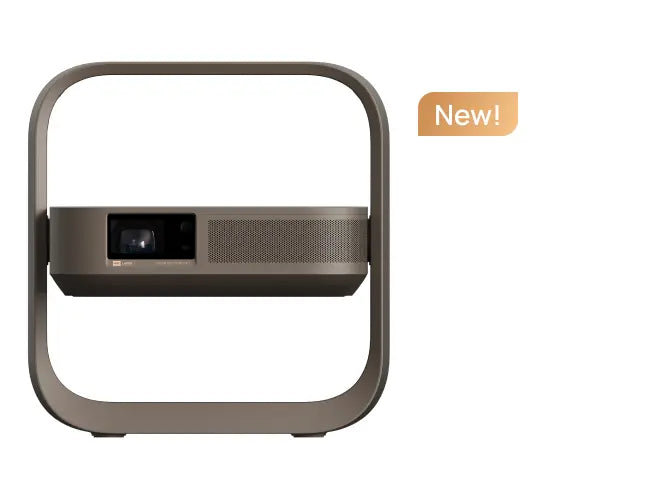
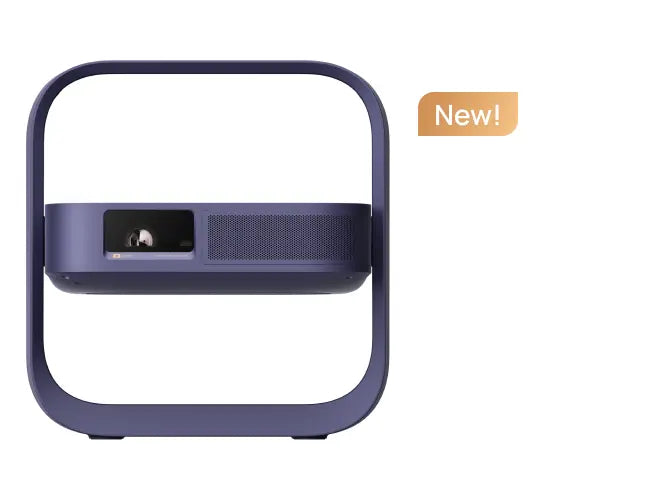
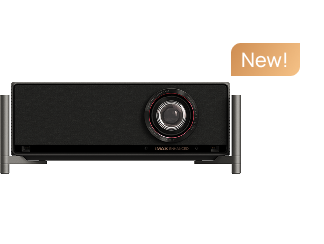
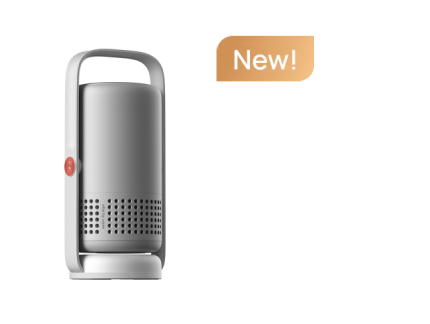
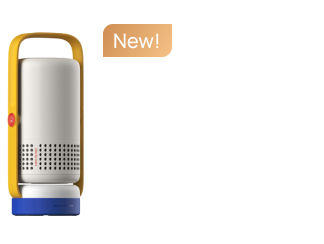
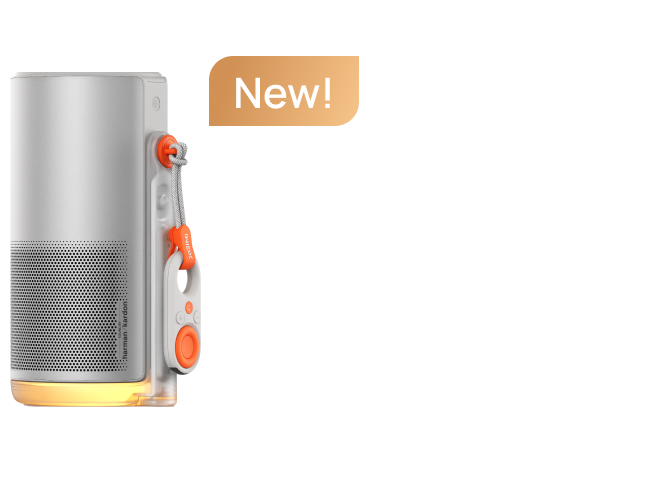
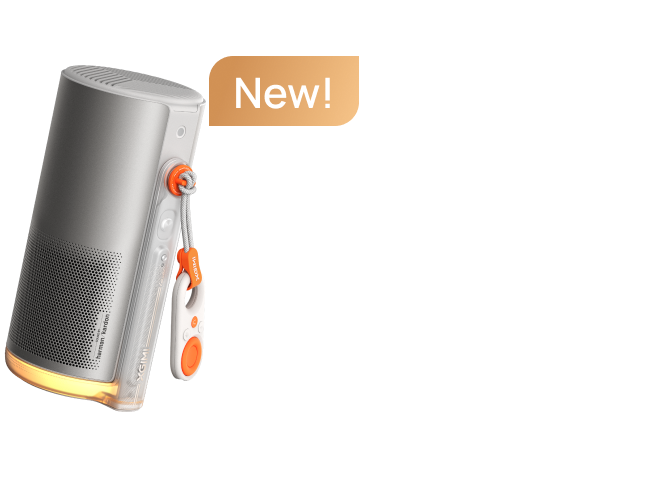
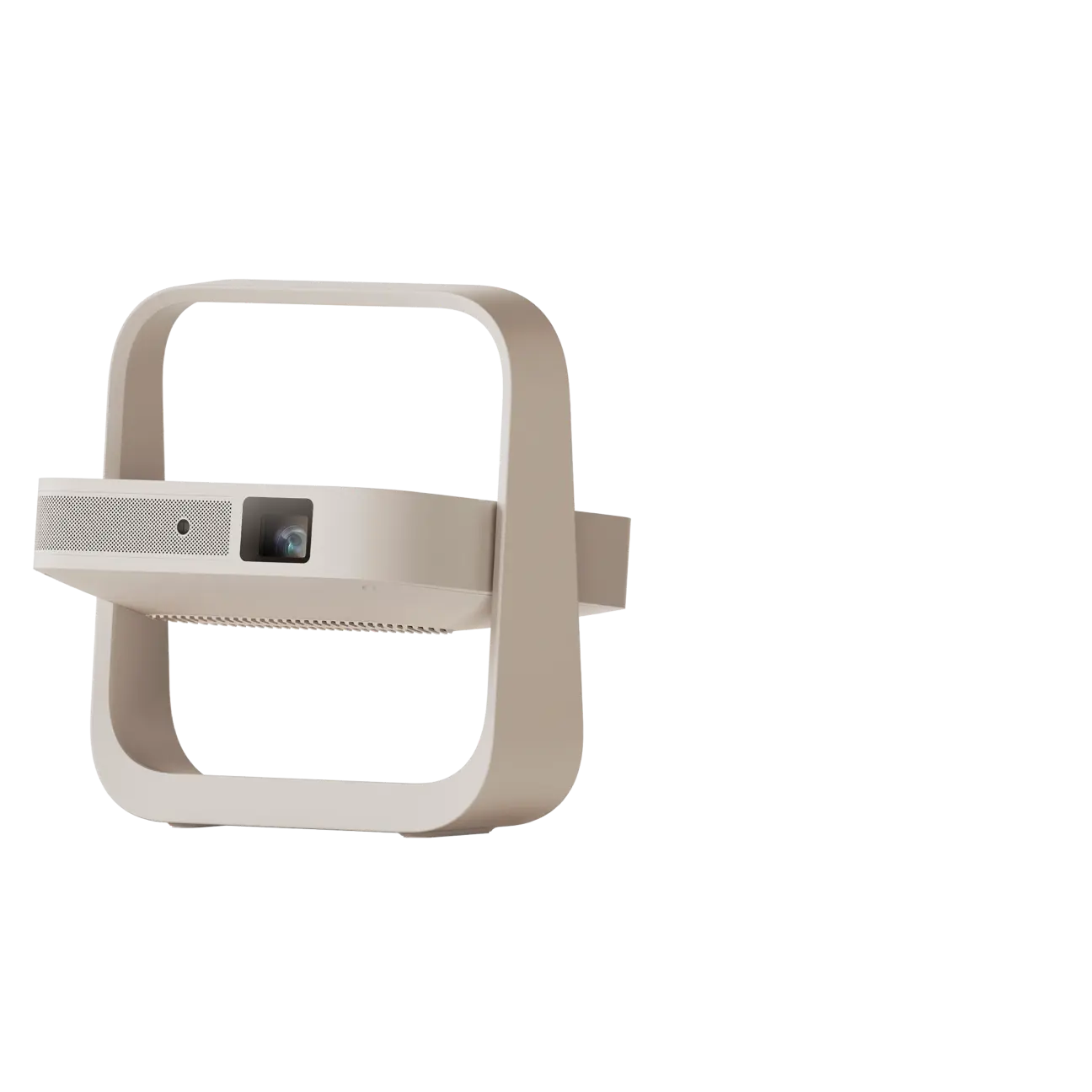
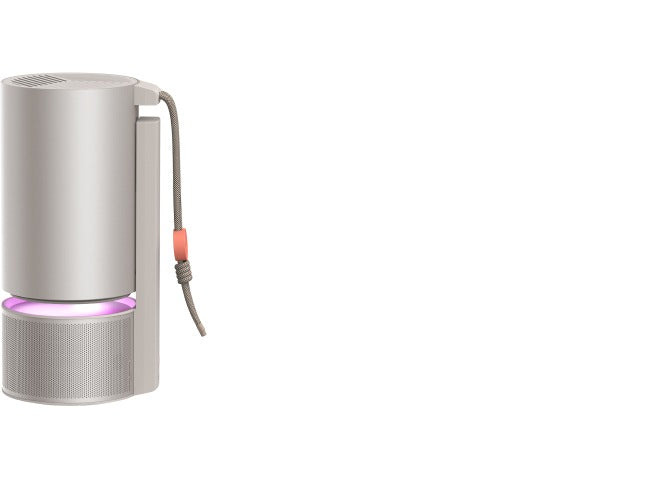
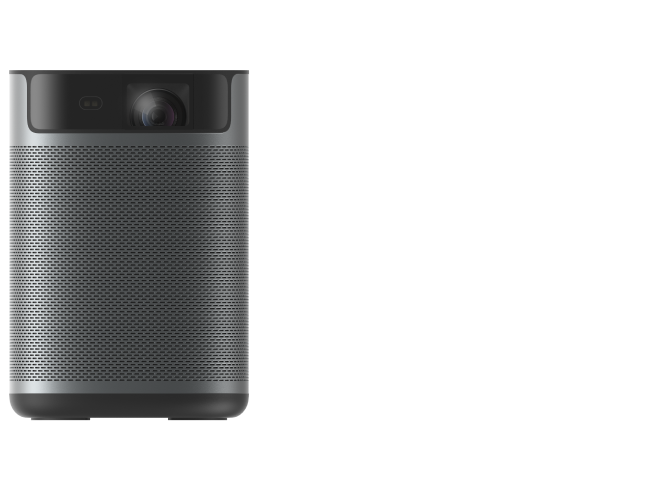
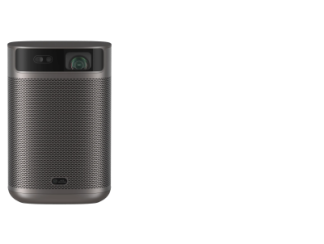
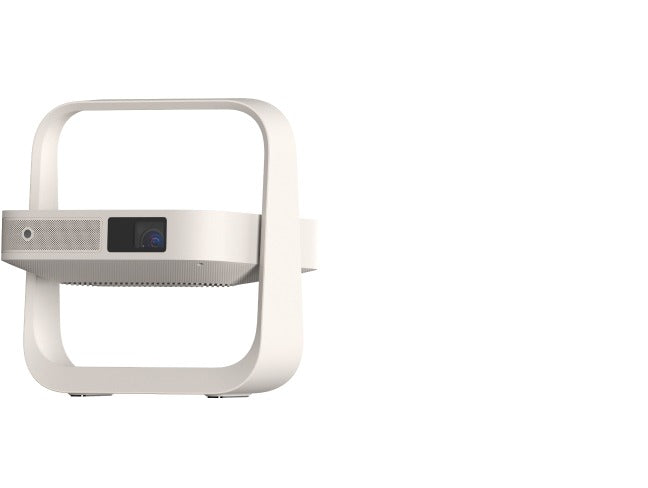
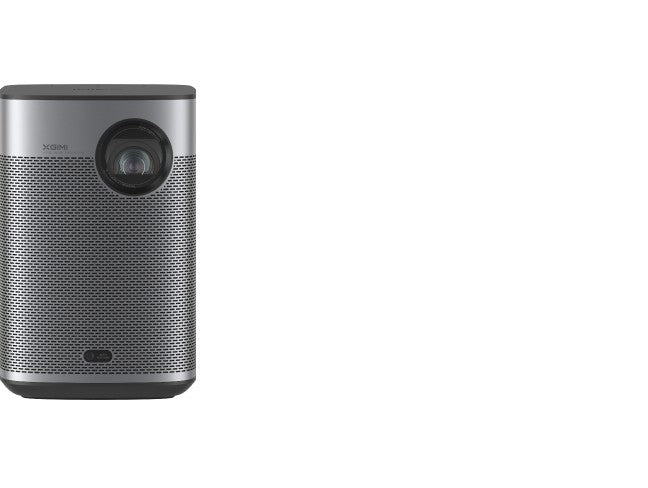
Elevate your viewing experience with XGIMI's cutting-edge home projectors! Immerse yourself in stunning visuals on-the-go, from movies to gaming and presentations.
With easy connectivity, compact design, and long battery life, XGIMI smart projectors are perfect for travel and home use alike. Don't miss out on this opportunity to bring the big screen wherever you go!
article_product1
article_product2
article_product3
Upgrade your entertainment game today with XGIMI's home TV projectors. Grab yours now and embrace a new world of cinematic brilliance and versatility!
Conclusion
Transform your TV experience by connecting it to a projector effortlessly! Firstly, ensure both devices have compatible ports (HDMI/VGA). Use the appropriate cable to link them. Power on the devices, set the projector to the right input, and adjust the display settings on your TV if needed.
Now, relish in larger-than-life visuals and enjoy your favorite shows and movies on the big screen. It's a simple and rewarding way to enhance your entertainment setup without the need for an expensive upgrade. Happy viewing!


